

Let's be honest: your "Downloads" folder is probably the messiest room in your digital house.
It's the modern equivalent of the kitchen's catch-all drawer. Bills, installers .exe that you used once, images IMG_4021.jpg without context and documents with names like borrador_final_v2_DEFINITIVO.pdf.
The problem is not the lack of disk space (storage is cheap these days). The problem is the cognitive load. Every time you open that folder and see the chaos, your brain receives a micro-shock of stress. You know you have to tidy it up, but "you'll do it later.".
That "later" never comes.
Today we're going to solve this by adapting one of the fundamental laws of productivity, the GTD's 2-Minute Rule (Getting Things Done), to your digital life.
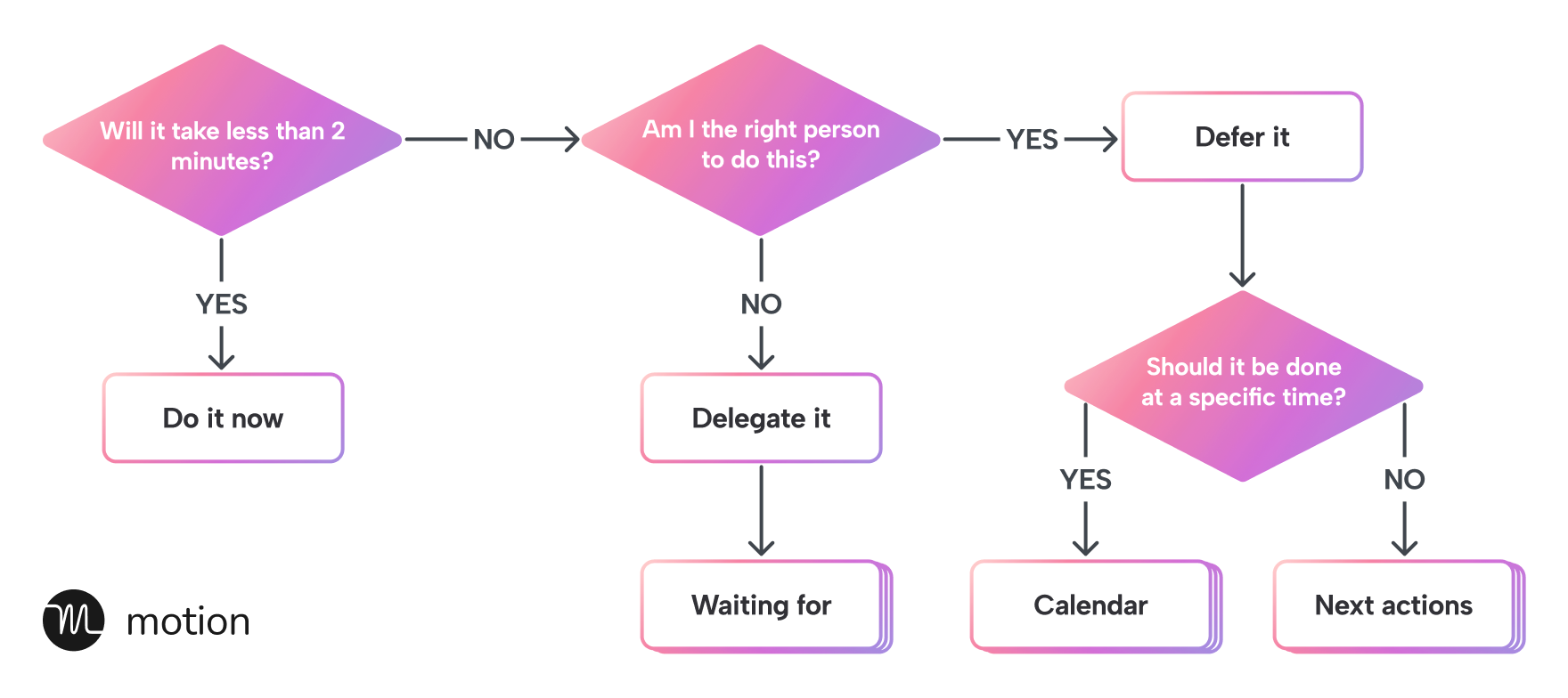
The Principle: If it's fast, kill it now
David Allen's original premise is simple: If a task takes less than 2 minutes to complete, do it immediately. Don't add it to your to-do list, don't postpone it. The time you spend organizing it is greater than the time it takes to actually do it.
How does this translate to a file you just downloaded or received by email?
The process must be visceral. The moment the file touches your hard drive, you must trigger the following sequence:
1. Identify (What is this?)
Don't let the file go cold. If it's an invoice, it's an invoice. If it's a meme, it's a meme.
2. The 120-Second Decision
Here we apply the rule. Ask yourself: Can I process this file right now?
- Option A (Immediate Waste): Is it the installer for a program that's already installed? A ZIP file that you've already extracted? SHIFT + DELETE. Don't keep it "just in case." Digital minimalism starts with the trash.
- Option B (Quick Action): Is it a document you need to sign and send? If it takes less than 2 minutes, open it, sign it, send it, and file the original. Don't leave it in "Pending.".
- Option C (File): Is this a quarterly invoice or a reference resource? Rename and Move.
The Key to Success: Naming and "Hotkeys"«
For the 2-minute rule to work, you can't waste 30 seconds figuring out how to name the file or navigating through 15 subfolders. You need speed.
Standard Nomenclature
Adopt a convention and stick with it. I always use and recommend:
YYYY-MM-DD_Descripcion_Contexto.ext
Example: 2025-12-02_Factura_Hosting_Empresa.pdf
By starting with the date (ISO 8601), your files are always sorted chronologically, regardless of where you store them. This eliminates the hassle of visually searching.
Keyboard Shortcuts (Speed)
If you use the mouse for everything, you're slow.
- F2 (Windows) / Enter (Mac): For instant renaming.
- Ctrl+X / Cmd+C: For cutting and moving.
- Spotlight (Mac) / PowerToys Run (Windows): To jump to the destination folder without navigating through the directory tree.
When the rule fails: Automation
What if you have 500 files piled up? The 2-minute rule is for daily maintenance, not for an initial deep clean. Or for when the task is repetitive.
This is where technology comes in to help us. If you find yourself doing the same thing over and over again (e.g., moving invoices from the "Downloads" folder to "Accounting"), automate it.
- On macOS: Use Hazel. It's black magic. You can create rules like: «"If the file is a PDF and contains the word 'Invoice', rename it with the current date and move it to the Finances folder."‘.
- On Windows: Use DropIt o Power Automate Desktop.
Conclusion: The Zen of the Empty Folder
Applying the 2-Minute Rule to your digital files won't magically give you more free time, but it will give you peace of mind.
No longer having to look at an endless list of unprocessed files eliminates visual clutter. Knowing that everything is where it should be, and that you can find any document in seconds thanks to good naming conventions, is true productivity.
Don't leave it for tomorrow .pdf that you can file today.